

Logo Link URLs return images directly, so you can embed company logos in Excel with the IMAGE() function — no code required. Logo Link in Microsoft Excel
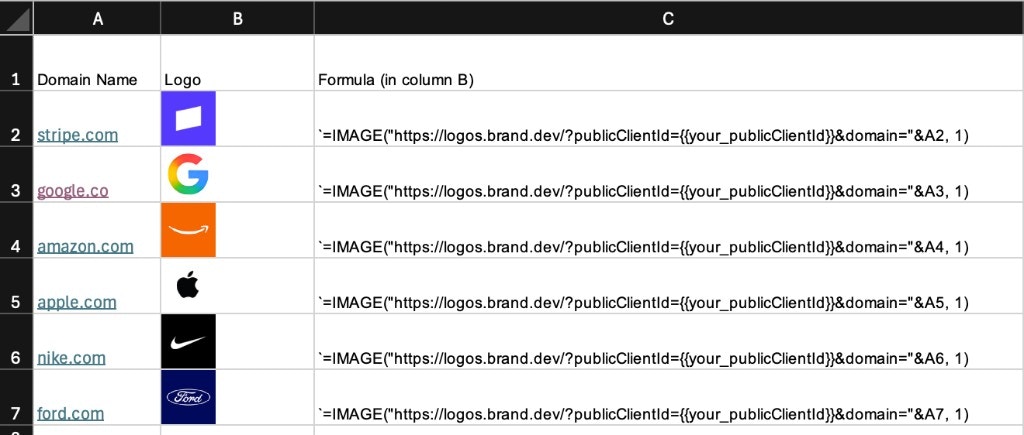
The IMAGE() function requires Excel for Microsoft 365 or Excel for the web. It is not available in older desktop versions of Excel.

Basic Usage

Use the IMAGE() function with a Logo Link URL:
=IMAGE("https://logos.brand.dev/?publicClientId=brandLL_xxx&domain=github.com")
Get your API key from the Brand.dev dashboard to get started.

Dynamic Domains

Reference a cell containing the domain instead of hardcoding it. If cell A2 contains github.com:
=IMAGE("https://logos.brand.dev/?publicClientId=brandLL_xxx&domain=" & A2)
Drag the formula down a column to fetch logos for an entire list of domains.

Sizing

Pass optional sizing parameters to control how the logo displays:
=IMAGE("https://logos.brand.dev/?publicClientId=brandLL_xxx&domain=github.com", "GitHub logo", 1)
The third parameter sets the sizing mode: 0 for fit to cell (default) or 1 for fill the cell.
Adjust row height and column width so logos display at a reasonable size.

Fallbacks

If a logo isn’t found for a domain, Logo Link automatically returns a generated monogram — cells will never show a broken image.